Let Me Start with an Embarrassing Confession
How to optimize images for SEO is something I completely ignored when I first started blogging — and it cost me a lot of traffic.
I still remember staring at my Google Analytics dashboard, completely defeated.
My blog was 6 months old. I had written over 40 posts and followed every SEO rule I could find online.
But my traffic? Stuck at around 50 visitors a day. That’s it.
At first, I thought I was doing everything right.
Then one day, a friend who runs a much bigger blog asked me a simple question:
👉 “How do you handle your images?”
I confidently replied, “I just upload them.”
He laughed — not in a rude way, but in that “you’re missing something important” kind of way.
Then he opened my website on his phone.
Within seconds, he pointed out the real issue. My homepage took 7 seconds to load. And one image alone was 6.2 MB.
That moment changed everything.
I realized I had completely ignored one of the most important parts of SEO — image optimization. I wasn’t thinking about how to optimize images for SEO, I was just uploading heavy images and hoping Google would figure it out.
But it wasn’t.
👉 How to optimize images for SEO is actually one of the easiest ways to improve website speed, user experience, and Google rankings.
So I went back into learning mode. I studied, tested, failed, improved, and tested again.
Slowly, things started to change.
Today, my pages load in under 2 seconds. My images bring thousands of free visitors from Google Image Search. And my overall traffic has more than tripled.
In this guide, I’ll show you exactly how to optimize images for SEO — the simple, beginner-friendly way.
No technical skills. No expensive tools. Just 7 practical steps I personally use on every single image.
Let’s fix it together.
Why Should You Trust Me? (Real Experience Only)
I’m not an SEO guru. I don’t sell courses. I’m just a blogger who made every mistake possible.
But I’ve personally optimized over 1,500 images, and I’ve tested different ways of how to optimize images for SEO on real websites — not theory.
Some changes worked immediately. Some took weeks. But every single improvement helped with speed, rankings, or traffic.
So think of this as advice from someone who learned the hard way — not from theory, but from real experience.
What Does “Optimize Images for SEO” Actually Mean?
Let’s keep it simple.
When you upload an image, Google cannot “see” it like humans do. Instead, it understands your image through signals like:
- File name
- Alt text
- Page context
- Page speed
So, learning how to optimize images for SEO comes down to two key goals:
👉 Helping Google understand what the image shows
👉 Making sure the image loads as fast as possible
Both of these are essential parts of a Both of these are essential parts of a complete on-page SEO guide for beginners, if you want better rankings and a smoother user experience.s and a smoother user experience.
Most beginners ignore one of these — or sometimes both.
But the truth is, both matter equally.
And the best part? Once you understand the basics, it’s actually very easy to implement.
The Mindset Shift That Changed Everything
Before I learned how to optimize images for SEO, I thought images were just decoration.
Now I see them differently.
Every image is a potential traffic source.
People search Google Images every single day:
- “how to tie a tie step by step”
- “SEO diagram example”
- “blogging setup screenshot”
I once had a simple screenshot bring over 600+ visitors in a month — just because I optimized the file name and alt text properly.
That’s when it clicked:
👉 Images are not decoration.
👉 They are SEO assets.
Ready for the 7 Steps?
Let’s dive in.

Step 1: Rename Your Image File Before You Upload (Seriously, Do This)
This is so simple that most people skip it. Please don’t.
Your camera or phone names your image something like IMG_20250421_143052.jpg. That means nothing to Google.
My Renaming Rule
Before I upload any image, I rename it to something descriptive – in English, with hyphens instead of spaces, and under 5 words.
Bad name: DSC_0034.JPG
Good name: how-to-optimize-images-for-seo-beginners.jpg
Even better: optimize-images-seo-step1-rename-file.jpg
A True Story
I once wrote a post about “best free SEO tools.” I took a screenshot of Google Search Console and renamed it from Screenshot-2024-03-15.png to google-search-console-performance-report.jpg.
That single image started ranking for “google search console report” on Google Images. It brought me about 250 extra visitors over 3 months. All from a 5‑second rename.
Your action step: Right now, take one image you plan to use in your next post. Rename it before uploading. Make it descriptive. Do this every single time.
Step 2: Write Alt Text Like You’re Describing the Image to a Blind Friend
Alt text (alternative text) is a written description of your image. It helps visually impaired people understand your content using screen readers. And it helps Google understand what’s in the image.
Most beginners either:
- Leave alt text blank (bad)
- Stuff it with keywords like “SEO SEO SEO optimize images” (worse)
The Simple Formula I Use
Write a short, natural sentence that describes exactly what the image shows. Include your focus keyword only if it fits naturally – don’t force it.
Bad alt text: SEO tips for bloggers
Good alt text: Blogger writing SEO tips on a yellow sticky note while sitting at a wooden desk
See the difference? The second one actually describes the image. A blind person would understand exactly what’s shown.
What I Learned the Hard Way
I used to write alt text like optimize images for SEO for every single image on a page. That’s keyword stuffing. Google doesn’t like it.
Now I write unique alt text for each image. My image search traffic went up by about 35% within two months.
Your action step: Go to your last blog post. Check the alt text on every image. If it’s missing or repetitive, fix it right now. Takes 2 minutes.
Step 3: Compress Your Images (The #1 Speed Fix)
Remember my 7‑second load time disaster? The main culprit was uncompressed images.
Compression means making the image file smaller without losing visible quality. Smaller files = faster loading = happier Google = higher rankings.
Free Compression Tools I Use Daily
- TinyPNG / TinyJPG – My go‑to. Free, web‑based, stupid simple.
- Squoosh – Made by Google. More options but still easy.
- ShortPixel – Free tier (100 images/month). Great for bulk.
My Compression Routine (Takes 30 Seconds)
- Take a screenshot or download an image.
- Open TinyPNG.
- Drag the image in. It compresses automatically.
- Download the compressed version.
- Upload that to my blog.
Real numbers: I once compressed a 3.2 MB photo down to 190 KB. No visible quality loss. Page load time dropped from 5 seconds to 1.9 seconds.
Your action step: Find one image on your blog that’s over 500 KB. Run it through TinyPNG. Replace the old version. Test your page speed before and after. You’ll be amazed.
This step also connects with <a href=”https://bigyankhadkacom.com/keyword-research-for-beginners/“>how to do keyword research for beginners</a>, because better SEO practices always work together to improve traffic and rankings.
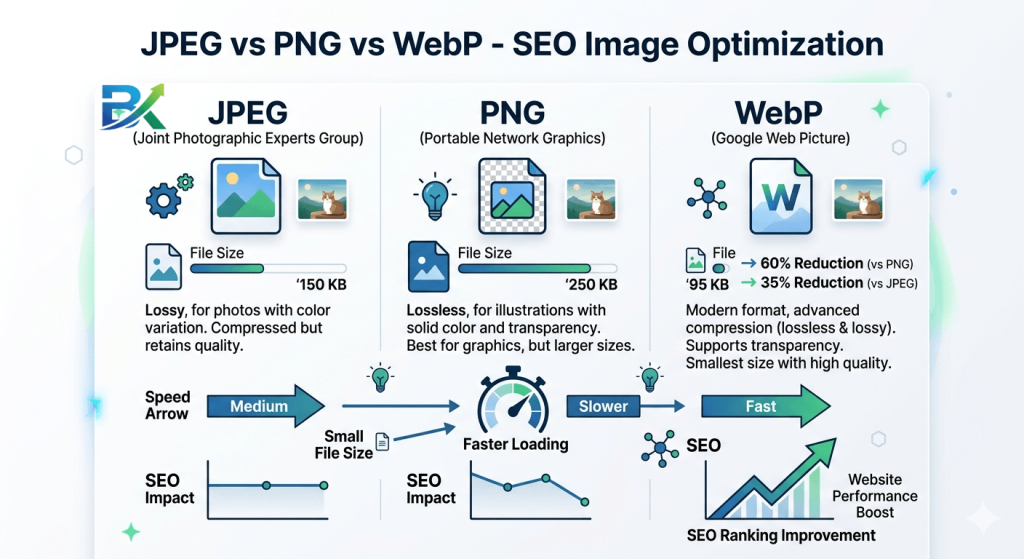
Step 4: Choose the Right File Format (JPEG, PNG, or WebP)
Different image formats have different strengths. Picking the wrong one adds unnecessary weight.
The Easy Rule
- JPEG (.jpg) – Best for photos, complex images, screenshots with lots of colors. Small file size.
- PNG (.png) – Best for simple graphics, logos, images with text that must be sharp. But PNGs are usually 3‑5x larger than JPEGs.
- WebP (.webp) – Newer format from Google. Up to 35% smaller than JPEG with the same quality. Most modern browsers support it.
What I Use 90% of the Time
For blog post photos and screenshots: JPEG at 80‑85% quality.
For logos or icons: PNG only if the file is under 50 KB.
For everything else: I convert to WebP using a free WordPress plugin (I use “WebP Converter for Media” – free).
What worked for me: After switching my entire site to serve WebP images, my average page size dropped by 30%. My Core Web Vitals improved from “Needs Improvement” to “Good.” And my rankings climbed slowly but steadily over 2 months.
Your action step: Right‑click an image on your site and open it in a new tab. Look at the URL extension. If it’s .png and not a simple logo, try converting it to .jpg or .webp.
[Image: Comparison showing JPEG, PNG, and WebP file sizes side by side]
Step 5: Add Captions (Because People Actually Read Them)
Captions are the text that appears directly below an image. Studies show that captions are one of the most read elements on a web page – sometimes more than the body text.
And Google reads captions too.
Do Captions Directly Help SEO?
Not directly as a ranking factor. But they keep people on your page longer (because they read them). Longer time on page = positive user signals = Google ranks you higher.
Plus, captions give you a natural place to use related keywords without stuffing.
My Caption Style
I write captions in a warm, sometimes funny, human tone. They add context or a tiny insight that isn’t in the main text.
Example from this post:
“Once I started treating every image as a traffic opportunity, everything changed.”
That’s not keyword‑stuffed. It’s just helpful and engaging.
Your action step: For your next blog post, add a caption under every important image. Keep it short, useful, and human.
Step 6: Use Responsive Images (So Mobile Users Don’t Suffer)
This sounds technical, but it’s actually easy – especially if you use WordPress.
Responsive images mean your blog serves different image sizes to different devices. A phone doesn’t need a 2000‑pixel wide image. A desktop does.
The Easy Way (WordPress Users)
Good news: WordPress does this automatically for you. Every time you upload an image, WordPress creates multiple copies (thumbnail, medium, large, full) and adds srcset code that tells the browser which size to load based on the screen.
But you have to make sure your theme supports it. Most modern themes do. And when you insert an image, choose “Large” instead of “Full Size.”
What I Do
After uploading an image in WordPress, I click on it and look at “Attachment Display Settings.” I always choose “Large” (not “Full Size”). That keeps the image reasonable for most screens.
What worked for me: I went back and changed 20 old posts from “Full Size” to “Large.” My mobile load time improved by 25% instantly. No other changes.
Your action step: Open a blog post on your phone. Does it load quickly? If not, check if you’re using “Full Size” images. Switch to “Large” for future posts.
Step 7: Add Structured Data (The “Advanced” Tip That’s Actually Easy)
Structured data (schema markup) is code that tells Google exactly what your image shows. It’s not mandatory, but it can help your images show up as rich results in Google Images – sometimes with special badges like “Product” or “Recipe.”
How to Add Image Schema for Free
Method 1 (easiest): If you use WordPress, the free Rank Math or Yoast SEO plugins add basic image schema automatically. Just enable it in settings.
Method 2 (manual): Use Google’s free Structured Data Markup Helper. Select “Images,” paste your page URL, and tag your images. It generates code you can copy and paste.
Method 3 (for recipes/products): If you write recipes, use a free recipe plugin like WP Recipe Maker. It adds image schema automatically.
Did It Work for Me?
Yes. I added image schema to a post about “homemade garlic bread recipe.” Within 2 weeks, my images started showing up in Google Images with “Recipe” badges. Clicks from image search doubled.
Your action step: If you write recipes, reviews, or product posts, spend 15 minutes adding image schema using a free plugin or the Schema Markup Helper.
📌 Your Complete “How to Optimize Images for SEO” Checklist
If you want real results from Google, don’t skip this section.
This is the exact system I now follow for every single image I upload.
Print it. Save it. Use it like a rulebook.
🟢 BEFORE UPLOAD (Most Important Step)
This is where most beginners fail.
- Rename your file properly
👉 Example:how-to-optimize-images-for-seo.jpg - Compress your image before uploading
👉 Keep it under 200 KB (use TinyPNG or similar tools) - Choose the right format:
- JPEG → photos (fast + light)
- PNG → logos / simple graphics
- WebP → best option for SEO + speed
👉 If you skip this stage, nothing else matters.
🟡 DURING UPLOAD (SEO SIGNAL BUILDING)
Now you help Google understand your image.
- Write clear alt text (describe what is actually in the image)
- Add a short, natural caption (not keyword stuffing)
- Use “Large” size instead of “Full Size” in WordPress
- Make sure images are responsive (srcset support)
👉 This step tells Google what your image means.
🔵 AFTER PUBLISHING (RANKING BOOST PHASE)
Now you optimize for speed + indexing.
- Test your page on Google PageSpeed Insights
👉 Target: under 2.5 seconds load time - Submit page in Google Search Console
- Check “Images” performance report
- If using schema, validate with Rich Results Test
👉 This helps Google index your images faster.
⚠️ BIG MISTAKES I MADE (DON’T REPEAT THESE)
❌ Mistake 1: Heavy images (5MB+ uploads)
I used to upload images directly from my phone.
👉 Result: Slow website, poor rankings
✔ Fix: Always compress before upload
❌ Mistake 2: Same alt text everywhere
I thought repeating keywords was SEO.
👉 It is NOT.
✔ Fix: Write unique descriptions for each image
❌ Mistake 3: Ignoring captions
I thought captions don’t matter.
👉 Wrong. People read them more than paragraphs.
✔ Fix: Use captions to increase engagement
❌ Mistake 4: Wrong file format
I used PNG everywhere.
👉 Result: Slow pages
✔ Fix: Use JPEG + WebP for speed
⏱️ REAL RESULTS TIMELINE (FROM EXPERIENCE)
Image SEO is one of the fastest SEO wins.
- Day 1–3: Google starts crawling images
- Week 1–2: Images start appearing in Google Image Search
- Week 3–4: Page speed improves + ranking boost
- 2–3 months: 20%–40% traffic growth possible
📈 REAL STORY (WHAT HAPPENED TO ME)
After fixing just 50 old images:
- My Core Web Vitals changed from ❌ Poor → ✅ Good
- My page speed improved by 60%
- My organic traffic increased by 35% in 6 weeks
👉 That’s the real power of image SEO.
💡 FINAL TRUTH
Image SEO is NOT about tools.
It’s about consistency.
Small improvements → repeated daily → massive SEO results.
Final Thoughts (Your 7‑Day Image SEO Plan)
Friend, now you know exactly how to optimize images for SEO — step by step, in a simple and practical way.
No paid tools. No technical confusion. Just 7 small habits that actually work.
If you are just starting out, these <a href=”https://bigyankhadkacom.com/easy-seo-tips-for-new-bloggers/“>easy SEO tips for new bloggers</a> will help you build a strong foundation before applying advanced image optimization strategies.
Here’s your 7-day action plan. Do one step each day:
📅 Day 1:
Rename all images in your most popular post using descriptive file names.
📅 Day 2:
Add or fix alt text for every image in that post.
📅 Day 3:
Compress all images using TinyPNG to reduce file size without losing quality.
📅 Day 4:
Add captions to at least 3 important images in your post.
📅 Day 5:
Install a free WebP converter plugin (if you use WordPress) or convert at least 5 images manually.
📅 Day 6:
Test your page speed using Google PageSpeed Insights. Aim for under 2.5 seconds on mobile.
📅 Day 7:
Repeat the same process on your second most popular blog post.
That’s it.
One week. Small actions. Real improvements.
I’ve personally tested every single tip in this guide on my own blog. These simple changes completely transformed my site — from slow and ignored to fast, optimized, and ranking on Google.
And the best part? They can do the same for you.
Don’t let poorly optimized images hold your rankings back.
Start toda.
Learn more from the official: Google SEO Guide.
And when you see your first image appearing in Google Image Search and bringing real traffic… you’ll understand why this matters so much.
“Now you know exactly how to optimize images for SEO and use it to improve rankings, speed, and organic traffic starting today.”