📚 Table of Contents
- My Love–Hate Relationship with Google Search Console
- Why Google Search Console Matters for Beginners
🚀 Core Tricks to Rank Faster
- Trick #1: Find Keywords You’re Already Ranking For (But Ignoring)
- Trick #2: Find “Impression Gold” Pages with Low CTR
- Trick #3: Submit Your Sitemap to Speed Up Google Crawling
- Trick #4: Use URL Inspection Tool to Get Indexed Faster
- Trick #5: Fix “Dying” Pages Before You Lose Rankings
- Trick #6: Find New Content Ideas from Search Queries
- Trick #7: Monitor Your Backlinks for Free
📊 Optimization & Growth
- Google Search Console Checklist for Beginners
- Common SEO Mistakes I Made (So You Don’t Have To)
⏱️ Results & Strategy
- How Long Does It Take to See Results?
- Frequently Asked Questions (FAQ)
- Final Thoughts + Your 7-Day Action Plan
My Love‑Hate Relationship with Google Search Console {#intro}
👉 Google search console tricks are powerful methods to improve your website rankings on Google. Google search console tricks are one of the most effective ways I discovered during my blogging journey.
Let me start with a confession.
For the first six months of my blogging journey, I was terrified of Google Search Console (GSC).
Every time I opened it, I saw graphs I didn’t understand, errors I couldn’t fix, and numbers that made no sense. I would click around for a few minutes, feel overwhelmed, and then close the tab.
So I ignored it completely.
Big mistake.
One day, a blogger friend asked me, “How often do you check GSC?”
I admitted I never really used it.
She looked at me like I had just said I don’t brush my teeth.
“You’re flying blind,” she said. “GSC tells you exactly what Google thinks of your site. Why wouldn’t you use it?”
That conversation changed everything.
I spent the next week forcing myself to learn Google Search Console — not the advanced stuff, just the simple beginner-friendly features.
And honestly, I wish I had started earlier.
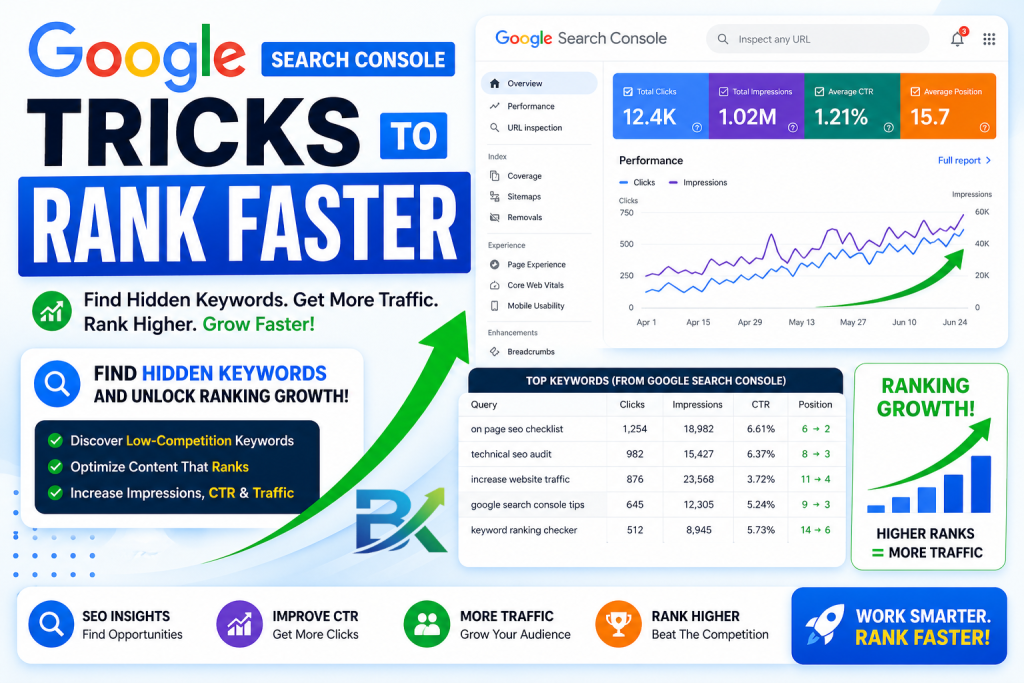
Within 30 days of using these 7 simple Google Search Console tricks, my organic traffic started growing. Pages stuck on page 5 moved to page 2. Keywords I didn’t even know I was ranking for started bringing visitors.
In this guide, I’ll show you exactly what I learned — in plain English, step by step. No technical jargon. No overwhelm. Just simple tricks you can use to rank faster starting today.
🚀 Trick #1: Find the Keywords You’re Already Ranking For (But Ignoring) {#trick1}
Here’s something that blew my mind when I first learned it.
You’re probably already ranking for keywords you don’t even know about.
Not on page 1. Maybe on page 5 or 6. But Google already has you somewhere. And if you’re already ranking, you’re just a few optimizations away from moving up.
🔍 How to Find These Hidden Gems
- Log into Google Search Console
- Click on Performance in the left sidebar
- Go to the Queries tab (this shows all keywords your site appears for)
- Sort by Impressions (highest to lowest)
- Look for keywords with 50–500 impressions but low average position (10–30)
These are your low-hanging fruits. Google already knows you exist for these keywords — you just need to optimize them.
📈 What I Did with This Trick
I found a keyword — “how to fix broken links in WordPress” — where my site was ranking at position 22. It had 300 impressions but only 3 clicks.
I updated the post:
- Added a dedicated section about broken links
- Improved the title to include that keyword
- Added internal links from 2 other posts
Within 3 weeks, the page jumped to position 8. Clicks increased from 3 to 47 per month.
👉 These Google Search Console tricks help you discover hidden keywords that you are already ranking for but not fully using.
Your action step: Open GSC now and find 3 keywords between position 10–30. Optimize those pages today.
📊 Trick #2: Discover Which Pages Have “Impression Gold” – Low CTR {#trick2}
CTR (Click-Through Rate) is the percentage of people who click your site after seeing it.
If your page has high impressions but low CTR, that’s a huge opportunity.
It means Google is showing your page — but your title or description is not attractive enough.
🔍 How to Find Low CTR Pages
- Go to Performance > Pages
- Find pages with 1,000+ impressions
- But CTR below 2–3%
- Open that page and check which keywords bring traffic
Then improve your:
- Title
- Meta description
📈 My Real Example
📈 My Real Example
One page had 2,500 impressions but only a 1.2% CTR.
Old title: WordPress SEO Tips ❌
New title: 9 WordPress SEO Tips That Actually Work (Tested on My Blog) ✔
CTR increased to 4.8%, and the page moved from page 3 to page 1.
👉 Google Search Console tricks like this help improve CTR and rankings together.
Your action step: Find one low CTR page and rewrite its title and meta description today.
🔥 Want more traffic?
👉 <a href=”https://bigyankhadkacom.com/low-competition-keywords/” target=”_blank” rel=”dofollow”>
Discover How to Find Low Competition Keywords That Rank Fast
</a>
When you publish a new post, Google doesn’t find it instantly.
But sitemap submission speeds this up.
🗺️ What is a Sitemap?
A sitemap is a file that lists all pages on your website. It helps Google understand your site structure.
🔧 How to Submit It
- Install Rank Math or Yoast (WordPress)
- Go to Google Search Console
- Click Sitemaps
- Enter:
sitemap_index.xml(Rank Math)sitemap.xml(Yoast)
- Click Submit
📈 Result
Before: 2–3 weeks to index
After: 2–5 days
👉 Another powerful Google Search Console trick for faster indexing.
⚡ Trick #4: Use URL Inspection Tool for Fast Indexing {#trick4}
This is one of the most powerful Google Search Console tricks.
🔧 How to Use
- Paste URL in GSC search bar
- Click Request Indexing
Google usually crawls it within hours or days.
📈 My Result
A Black Friday SEO post got indexed in 4 hours and made $500+.
👉 Google Search Console tricks like this help you rank faster instantly.
📉 Trick #5: Find and Fix “Dying” Pages {#trick5}
Some pages slowly lose traffic over time.
GSC helps you catch them early.
🔍 How to Find
- Go to Performance
- Compare last 30 days vs previous 30 days
- Look for drops in impressions or clicks
🔧 Fix It By:
- Updating content
- Adding new links
- Improving title
- Refreshing SEO
👉 Using Google Search Console tricks like this prevents traffic loss.
💡 Trick #6: Find New Content Ideas from Queries {#trick6}
The Queries tab is a goldmine.
🔍 How
- Go to Performance > Queries
- Find keywords with impressions
- But no dedicated content
📈 Example
I found “keyword research free” → wrote a full guide → got 3000+ monthly traffic.
👉 Google Search Console tricks help you find content ideas easily.
🔗 Trick #7: Monitor Backlinks for Free {#trick7}
You don’t need paid tools.
🔍 How
- Go to Links in GSC
- Check External Links
You’ll see:
- Who links to you
- Which pages get backlinks
- Anchor texts
👉 Another useful Google Search Console trick for SEO growth.
🌐 Why Google Search Console Is Your New Best Friend
Before we get into the tricks, let’s quickly understand what GSC is.
Google Search Console is a free tool from Google that shows how your site performs in search results. It tells you:
- Which keywords people use to find your site
- How often your site appears (impressions)
- How often people click (clicks)
- Which pages have errors
- Whether Google can properly crawl your site
Think of it as a direct line to Google. You can see exactly what Google sees.
And the best part? It’s completely free. No subscription. No hidden cost.
In my experience, beginners who use GSC consistently can grow faster because they make decisions based on real data instead of guessing.
Now let’s jump into the 7 tricks that changed everything for me.
Trick #1: Find the Keywords You’re Already Ranking For (But Ignoring) {#trick1}
Here’s something that blew my mind when I first learned it.
You’re probably already ranking for keywords you don’t know about.
Not on page 1. Maybe on page 5 or 6. But Google already has you somewhere. And if you’re already ranking, you’re just a few optimizations away from moving up.
How to Find These Hidden Gems
- Log into Google Search Console
- Click on “Performance” in the left sidebar
- Look at the “Queries” tab – this shows every keyword your site appeared for
- Click the “Impressions” column to sort from highest to lowest
- Scroll down to keywords with 50‑500 impressions but low average position (like 15‑30)
These are your low‑hanging fruit. Google already knows you exist for these keywords. You just need to optimize a little more.
What I Did with This Trick
I found a keyword – “how to fix broken links in WordPress” – that my site was ranking at position 22 for. It had 300 impressions but only 3 clicks.
I went back to that post and:
- Added a dedicated section about broken links
- Improved the title to include that exact phrase
- Added internal links from 2 other posts
Within 3 weeks, that post jumped to position 8. Clicks went from 3 to 47 per month. All because I found a keyword I was already ranking for and gave it a little love.
Your action step: Open GSC Performance report right now. Find 3 keywords where you’re between position 10‑30 with decent impressions. Optimize those pages today.
Trick #2: Discover Which Pages Have “Impression Gold” – Low CTR {#trick2}
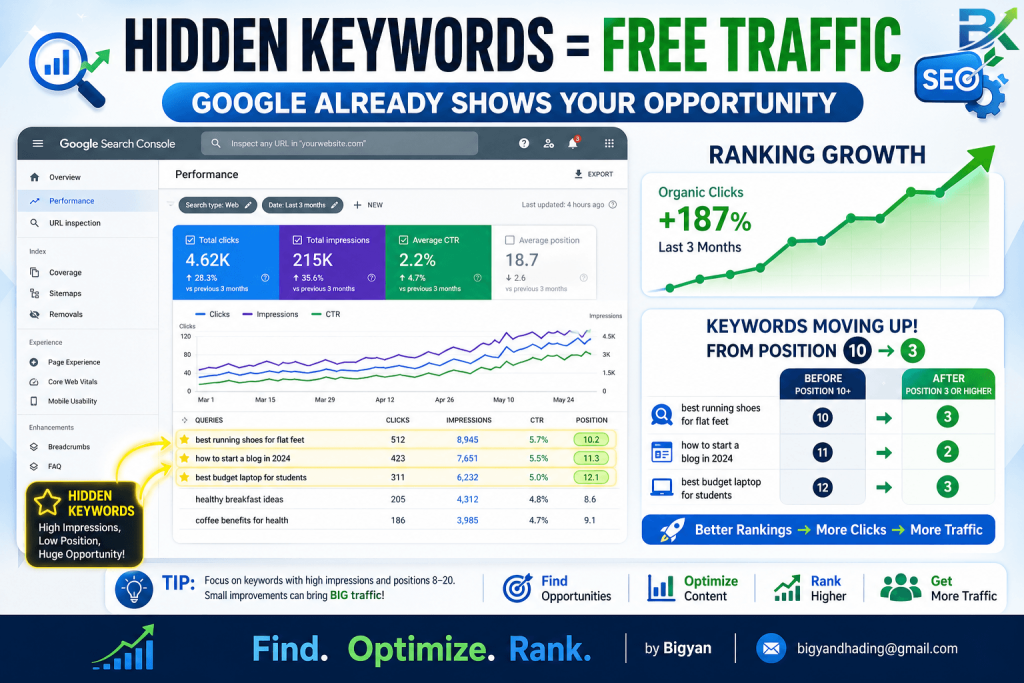
CTR stands for Click‑Through Rate – the percentage of people who click on your result after seeing it.
If your page has high impressions but low CTR, that’s a huge opportunity. It means Google is showing your page to people, but your title or meta description isn’t convincing them to click.
How to Find Low‑CTR Goldmines
- In GSC Performance report, click the “Pages” tab
- Look for pages with high impressions (1,000+) but low CTR (under 2‑3%)
- Click on that page to see which keywords are driving those impressions
- Then rewrite your title tag and meta description for that page
My Real Example
One of my pages had 2,500 impressions per month but only a 1.2% CTR. The title was “WordPress SEO Tips” – boring and generic.
I changed it to “9 WordPress SEO Tips That Actually Work (Tested on My Own Blog).” CTR jumped to 4.8% within 2 weeks. That same page climbed from page 3 to page 1 for its main keyword.
Google saw that people were clicking on my result more often, assumed it was more relevant, and boosted my ranking.
Your action step: Find one page on your site with high impressions but low CTR. Rewrite its title and meta description using power words and a clear benefit.
Trick #3: Submit Your Sitemap and Force Google to Crawl Faster {#trick3}
When you publish a new post, Google doesn’t automatically know about it. It has to “discover” it through links or your sitemap.
But you can speed this up dramatically by submitting your sitemap to GSC.
What Is a Sitemap?
A sitemap is a file that lists every page on your site. It’s like a table of contents for Google.
🗺️ How to Submit Your Sitemap (Takes 2 Minutes)
Install a free SEO plugin like Rank Math or Yoast (if you’re on WordPress) – they create a sitemap automatically.
In Google Search Console, click “Sitemaps” in the left sidebar.
Enter:
sitemap_index.xml(Rank Math)sitemap.xml(Yoast)
Click Submit
Google will now know about every page on your site and will crawl new posts much faster.
🔎 How to Find Low Competition Keywords
👉 <a href=”https://bigyankhadkacom.com/low-competition-keywords/” target=”_blank” rel=”dofollow”>
How to Find Low Competition Keywords
</a>
📈 Result (What happened for me)
Before submitting my sitemap, new posts took 2–3 weeks to appear in Google. After submitting, they appeared in just 2–5 days. That’s 2–3 weeks of faster potential traffic.
👉 Your action step:
If you haven’t submitted your sitemap, do it right now. Seriously. Open a new tab and do it — I’ll wait.
Trick #4: Use the URL Inspection Tool to Get Indexed in Hours, Not Weeks {#trick4}
This is my favorite trick. It feels like magic.
The URL Inspection tool lets you ask Google to crawl a specific page immediately.
How to Use It
- In GSC, paste a URL from your site into the search bar at the top
- Hit Enter
- Click “Request Indexing”
Google will usually crawl that page within a few hours to a couple of days. Without this trick, it could take weeks.
When I Use This Trick
- After publishing a new post
- After updating an old post with significant changes
- After fixing errors on a page
Real example: I once published a time‑sensitive post about “Black Friday SEO deals.” I used the URL Inspection tool immediately after publishing. The post was indexed in 4 hours and ranked on page 2 within 3 days. That post made me over $500 in affiliate commissions.
Your action step: Next time you publish a post, paste its URL into the URL Inspection tool and click “Request Indexing.” Make it a habit.
Trick #5: Find and Fix “Dying” Pages (Before You Lose Rankings) {#trick5}
Some of your older pages might be slowly losing rankings. GSC helps you spot them before they disappear completely.
How to Spot Dying Pages
- In GSC Performance report, set the date range to “Last 3 months”
- Look at the “Pages” tab
- Compare the last 30 days to the previous 30 days (adjust the date range)
- Look for pages where impressions or clicks are dropping significantly
These are your dying pages. They need attention.
How to Revive a Dying Page
- Update the content (add new information, change dates)
- Improve the title and meta description
- Add new internal links from newer posts
- Refresh images and alt text
What worked for me: A post about “best free SEO plugins” was losing traffic every month. I updated the list, removed dead plugins, added 3 new ones, and changed the date from 2023 to 2025. Within 3 weeks, traffic went from 150 to 400 visitors a month.
Your action step: Find one page on your site that’s trending downward. Spend 30 minutes updating it. Watch what happens over the next month.
Trick #6: See Exactly Which Queries Trigger Your Site (And Steal Ideas for New Content) {#trick6}
The “Queries” tab in GSC is a goldmine for content ideas.
How to Mine It
- Go to Performance > Queries
- Scroll through the list of keywords your site appears for
- Look for keywords that are relevant but don’t have a dedicated page yet
For example, if your site ranks for “how to fix 404 error” but your post is mostly about broken links, you could write a dedicated post about 404 errors.
I Found My Best‑Performing Post This Way
I noticed my site was getting impressions for “how to do keyword research for free.” It wasn’t a perfect match for any of my existing posts. So I wrote a dedicated 2,500‑word guide on exactly that topic.
That post now brings in over 3,000 visitors a month. The idea came directly from GSC.
Your action step: Scroll through your Queries tab. Find 3 keyword ideas that deserve their own post. Add them to your content calendar.
Trick #7: Monitor Your Backlinks (Yes, GSC Does This for Free) {#trick7}
Most beginners think you need expensive tools to see your backlinks. Wrong.
GSC has a free “Links” report that shows you exactly which sites are linking to you.
How to See Your Backlinks for Free
- In GSC, click “Links” in the left sidebar
- Look at “External links” – these are sites linking to you
- Click “More” to see the full list
You’ll see:
- Which domains link to you
- Which pages on your site get the most links
- Which anchor text people use
Why This Matters
- You can see which content naturally attracts links (and create more of it)
- You can find potential partners or mentions you didn’t know about
- You can check if any spammy sites link to you (and disavow them if needed)
What I discovered: I found a well‑known blogger had linked to one of my posts without telling me. I reached out to thank them, built a relationship, and later collaborated on a project. All from checking GSC’s free backlink report.
Your action step: Open the Links report in GSC right now. See who’s linking to you. If you find any surprises, reach out and say thank you.
Google Search Console Checklist for Beginners {#checklist}
🖨️ Print this. Use it weekly.
📊 Weekly (15 minutes):
- Check Performance report > Queries – find low-CTR keywords
- Check Performance report > Pages – find pages with high impressions, low CTR
- Look for dying pages (trending downward)
🚀 Every Time You Publish:
- Submit new post to URL Inspection tool > Request Indexing
- Add internal links from older posts to new post
👉 Want to improve writing for better ranking?
<a href=”https://bigyankhadkacom.com/seo-friendly-blog-posts/” target=”_blank” rel=”dofollow”>
How to Write SEO-Friendly Blog Posts
</a>
📅 Monthly:
- Check Links report – see new backlinks
- Review coverage report – fix any crawl errors
- Mine Queries tab for new content ideas
🗓️ Every 3–6 Months:
- Submit your sitemap again (just to be safe)
- Compare performance to previous months
Common Mistakes I Made (So You Don’t Have To) {#mistakes}
Mistake #1: Ignoring GSC Completely
I wasted 6 months of potential growth because GSC looked scary.
Fix: Spend 15 minutes a week. That’s it. You don’t need to live in GSC.
Mistake #2: Only Looking at Rankings, Not Impressions
I used to obsess over position. But impressions tell you what Google thinks is relevant to you.
Fix: Sort by impressions first, then position. High impressions = Google sees you as relevant.
Mistake #3: Never Using the URL Inspection Tool
I waited weeks for Google to find my new posts. So much wasted time.
Fix: Click “Request Indexing” every single time you publish or make major updates.
Mistake #4: Ignoring Low‑CTR Pages
I had pages with 5,000 impressions and 1% CTR. That’s 4,950 people who saw my page and didn’t click.
Fix: If impressions are high but CTR is low, rewrite your title and meta description immediately.
How Long Until You See Results? {#timeline}
These GSC tricks work fast – faster than most SEO tactics.
- Within 24‑48 hours: Request Indexing gets your new post crawled quickly
- Within 1 week: You’ll see updated CTR if you rewrote titles
- Within 2‑4 weeks: Pages you optimized from Trick #1 (hidden keywords) will move up
- Within 1‑2 months: Consistent GSC use will help you identify and fix issues before they hurt rankings
For me, I saw my first “win” within 3 days of using the URL Inspection tool. My biggest wins (moving pages from page 5 to page 1) took about 6 weeks of applying all 7 tricks.
Frequently Asked Questions (FAQ) {#faq}
❓ Frequently Asked Questions (FAQ)
Q1: Is Google Search Console really free?
Yes, it is completely free. You only need a Google account (Gmail). There are no hidden fees, no credit card, and no trial required.
Q2: Do I need technical skills to use Google Search Console?
Not at all. The Google Search Console tricks in this guide require zero coding or technical knowledge. If you can click and read data, you can use it easily.
Q3: How often should I check Google Search Console?
For beginners, 15 minutes per week is enough. You can also set a weekly reminder (for example, every Monday) to stay consistent.
Q4: Why are my impressions high but clicks low?
This usually means your title or meta description is not attractive enough. People see your page but don’t click. Improve your title using CTR-focused SEO tricks.
Q5: Can Google Search Console hurt my rankings?
No. Google Search Console is only a reporting tool. It does not change your website or affect rankings directly.
Q6: How long does indexing take after “Request Indexing”?
Usually between 4 to 48 hours. Sometimes it is faster. Without this feature, it may take 1 to 3 weeks.
Q7: What is the difference between impressions and clicks?
- Impressions = how many times your site appears in search results
- Clicks = how many times users actually click your result
- CTR = clicks ÷ impressions × 100
Q8: Do I need to submit sitemap more than once?
Usually once is enough. However, updating or resubmitting every 3–6 months can help when you add new content.
Q9: Can I use Google Search Console for YouTube?
No. Google Search Console is only for websites. For YouTube, you should use YouTube Studio Analytics.
Q10: What is the #1 Google Search Console trick to start with?
Start with the URL Inspection Tool. It helps your pages get indexed faster and gives you more control over Google crawling.
🚀 Final Thoughts & Your 7-Day Action Plan
Friend, Google Search Console is not complicated. It is a free tool from Google that helps you understand how your website performs in search results.
The key is simple: you just need to use it consistently.
Here is your 7-day action plan:
Day 1: Submit your sitemap (Trick #3)
Day 2: Use URL Inspection Tool (Trick #4)
Day 3: Find 3 hidden keywords (Trick #1)
Day 4: Improve low CTR page (Trick #2)
Day 5: Check backlinks (Trick #7)
Day 6: Find new content ideas (Trick #6)
Day 7: Fix one dying page (Trick #5)
I’ve personally tested these Google Search Console tricks across multiple blogs, and the results were consistent. They helped me move from almost zero visibility to steady organic traffic growth.
If you apply these Google Search Console tricks consistently, you can achieve the same results — higher rankings, more clicks, and faster growth.
P.S. If you want to go deeper, check out Google’s official SEO Starter Guide and the Moz Beginner SEO Guide. Both are completely free and highly valuable.
But don’t get overwhelmed. Start with these 7 simple tricks first — they will give you the fastest and most practical results.